
Bookkeeping Insights
QuickBooks Migration: How to Move Without Losing History
title: "QuickBooks Migration: How to Move Without Losing History" description: "A step-by-step guide to migrating from QuickBooks Desktop to QuickBooks Online without losing financial history, coverin
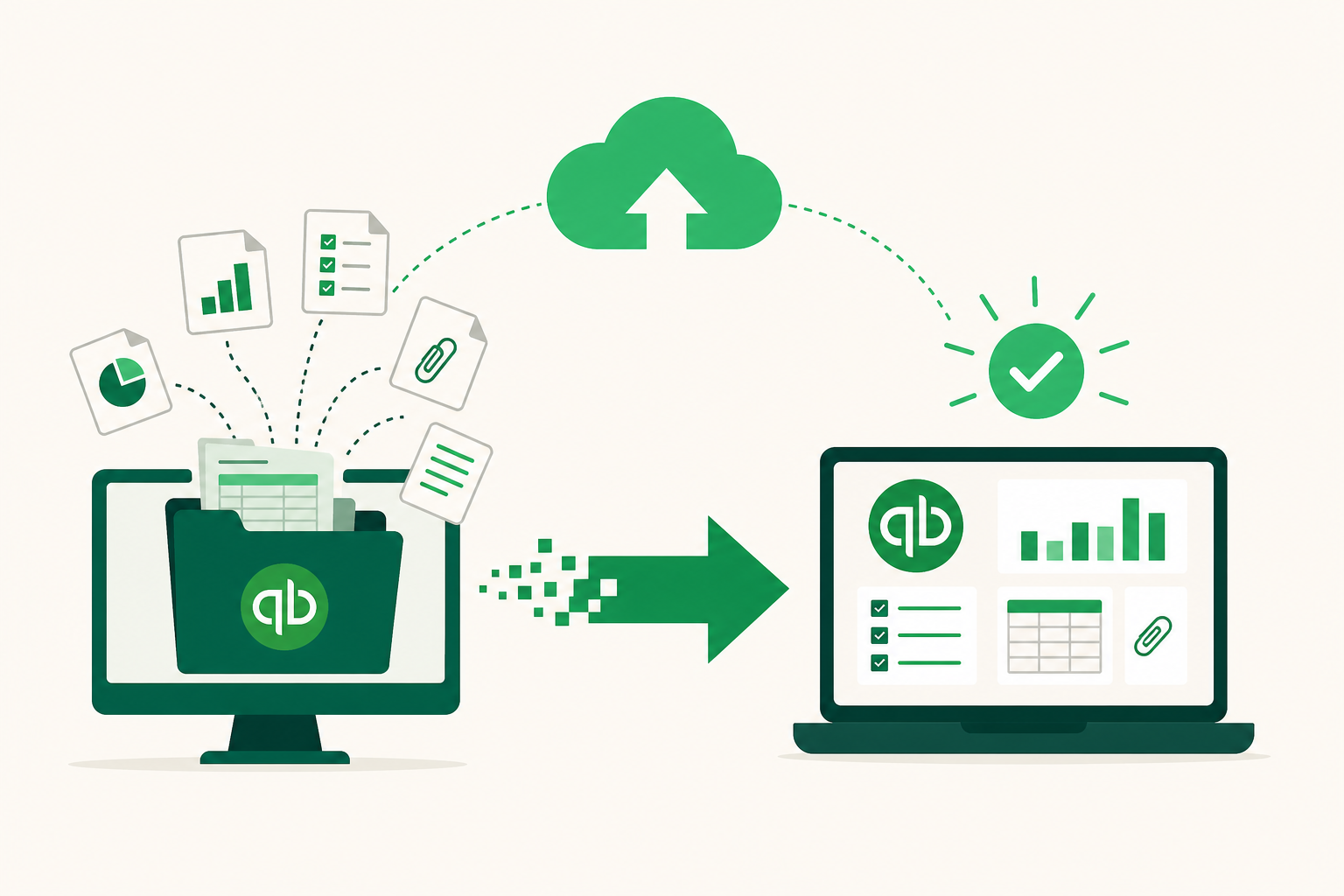
title: "QuickBooks Migration: How to Move Without Losing History"
description: "A step-by-step guide to migrating from QuickBooks Desktop to QuickBooks Online without losing financial history, covering file-size limits, data exclusions, and post-migration validation."
date: 2025-07-14
updated: 2025-07-14
author: LedgerHQ
category: quickbooks-migration
QuickBooks Migration: How to Move Without Losing History
Migrating from QuickBooks Desktop to QuickBooks Online takes five ordered steps: prepare and verify your company file, check file-size limits, run the migration tool, confirm restricted data types were handled manually, and validate reports in both systems. Done in order, the process preserves your transaction history and chart of accounts. Note that some data types, including past reconciliation reports and attachments, do not transfer and must be exported before you begin. The most common failures trace back not to the migration tool itself, but to skipped preparation steps and data types that disappear without warning.
What Doesn’t Transfer When You Switch from QuickBooks Desktop to Online?
Several data types do not move during a QuickBooks Desktop to Online migration, and the tool gives no error message when it skips them. You only discover the gap during post-migration validation, which is too late if you have already closed the Desktop file.
The Intuit Migration Tool does not transfer the following:
- Past reconciliation reports. Prior reconciliation history does not carry over. Your reconciled balances appear, but the individual reconciliation records do not.
- Audit trail. The full audit trail from Desktop stays in Desktop. QuickBooks Online starts a new audit trail from the migration date forward.
- Attachments. Any documents attached to transactions in Desktop, such as receipts or contracts, must be exported and re-attached manually in Online.
The practical response is to export a copy of each excluded data type before you begin. Run a full reconciliation report for every account and save it as a PDF. Download all transaction attachments as a batch. These exports take an hour at most and prevent permanent data loss.
Knowing what will not transfer is the first step in a clean switch from QuickBooks Desktop to Online. The next question is whether your file is even eligible to migrate directly.
File Size Limits and Target Counts: Will Your File Qualify?
Not every QuickBooks Desktop file can migrate directly to Online. Intuit measures file size in "targets," which count the total number of records, transactions, and list entries in the company file. If your file exceeds the applicable threshold, the migration tool will either fail mid-transfer or refuse to start.
For QuickBooks Pro and Premier Desktop files, the direct migration limit is 750,000 targets. This is the threshold most small and mid-size businesses encounter. General Intuit guidance sets a separate ceiling of 4,000,000 targets for company files overall. These are two different thresholds for two different purposes: the 750,000 figure governs whether a Pro or Premier file can use the direct migration path, while the 4,000,000 figure represents the outer limit for the file format itself.
To check your target count, open your Desktop file and navigate to the product information screen. The target count appears there alongside the file size in megabytes. Do this before you do anything else.
If your file is under 750,000 targets, you can proceed with the standard migration path. If it exceeds that limit, you have a more complex situation. The direct tool will not work for Pro or Premier files above that threshold. At that point, your options narrow to working with a specialist migration service, such as Fourlane, which focuses on rescuing failed or oversized migrations, or archiving older transaction history in Desktop and migrating only recent years.
One practical note on file age: companies that have used QuickBooks Desktop for more than five years frequently find their target counts higher than expected. Payroll transactions, inventory adjustments, and journal entries accumulate quickly. Check the count well before your planned migration date.
How to Prepare Your QuickBooks File Before Migration
Preparation determines whether the migration succeeds or fails. A clean, verified file moves reliably. A file with unresolved errors, open transactions, or network dependencies does not.
Complete these steps in order before you run the migration tool:
-
Store the file locally. The company file must be on the computer's local hard drive, not a network location or mapped drive. Move it before you begin [S1].
-
Check your target count against the 750,000-target limit. Open the product information screen in Desktop and confirm the file qualifies for direct migration [S2].
-
Run the data verification utility. Use the internal verify and rebuild function to find and repair any damaged records in the file [S3]. A file with known errors will produce unpredictable results on the other side.
-
Switch to single-user mode. Lock the file so no one can post transactions while the transfer is running [S4]. Any transaction posted mid-transfer may not appear in Online.
-
Finalize all pending payroll runs. Complete any open payroll and wait at least two business days for the data to settle before starting the migration [S5].
-
Export the data types that will not transfer. Before you touch the migration tool, export reconciliation reports and transaction attachments as described in the previous section. This step is manual and has no automated substitute.
-
Back up the Desktop file. Create a full local backup immediately before running the migration. If the transfer fails partway through, you need a clean restore point.
The Intuit Migration Tool is the official utility built into QuickBooks Desktop for this process. It handles the connection between your Desktop file and your QuickBooks Online company. Before you launch it, confirm that your QuickBooks Desktop software is updated to the most recent release. Running the migration on an outdated version of Desktop introduces compatibility issues that are avoidable.
One preparation step that many guides skip: reconcile every bank and credit card account through the most recent statement before migrating. The migration carries over transaction-level data, but if your books are not reconciled in Desktop, you will carry unresolved differences into Online and then spend time diagnosing them there. Clean books going in means clean books coming out.
How to Run the QuickBooks Migration Tool Step by Step
Once your file is prepared, verified, and backed up, the actual transfer is a linear process. The Intuit Migration Tool is built into QuickBooks Desktop and handles the connection to your QuickBooks Online company directly.
Complete these steps in order:
-
Open QuickBooks Desktop and sign in as the admin user. The migration tool requires admin credentials. If you are not the file's admin, the option will not appear.
-
Navigate to the migration option. Go to Company > Move to QuickBooks Online. This launches the built-in migration wizard.
-
Sign in to your QuickBooks Online account. The wizard will prompt you to authenticate with your Intuit credentials. If you do not yet have a QuickBooks Online company set up, you will need to create one before this step.
-
Choose what to bring over. The wizard asks whether to include inventory. If your Desktop file uses inventory items, confirm the selection carefully. QuickBooks Online handles inventory differently than Desktop, and some configurations may not map cleanly.
-
Start the transfer. The tool uploads your file to Intuit's servers and begins the conversion. File size and internet speed determine how long this takes. A small file may finish in under an hour. A file near the 750,000-target ceiling can take several hours. Do not close Desktop or interrupt the connection during the transfer.
-
Wait for the confirmation email. Intuit sends an email when the migration completes. Do not log in to QuickBooks Online to check until you receive it. Accessing the Online file mid-conversion can corrupt the data.
-
Log in to QuickBooks Online and review the opening screen. The first screen after migration shows a summary of what transferred. Read it before doing anything else.
For files that exceed the direct migration limit or that failed a previous attempt, Fourlane offers specialist migration consulting and a proprietary cloud interface for QuickBooks Desktop. Per its published notes, Fourlane focuses specifically on rescuing failed or complex migrations. Pricing is not publicly listed, so you would need to contact them for a quote.
If you are a bookkeeping firm planning migration for multiple client files, the full step-by-step firm migration plan covers the sequencing decisions that apply when you are moving more than one company at once.
The migration tool handles the transfer. What it does not do is confirm the data arrived correctly. That is the next step.
Post-Migration Validation: How to Confirm Nothing Was Lost
Validation is not optional. The migration tool does not alert you when balances differ or when records land in the wrong account. You find those problems by comparing reports side by side.
Complete these checks before you close the Desktop file or go live in QuickBooks Online:
-
Run the Balance Sheet in both systems for the same date. Use the last day of the most recent closed period. Total assets, liabilities, and equity must match exactly. Any difference means a transaction did not migrate or landed in the wrong account [S7].
-
Run the Profit and Loss in both systems for the full history range. Compare revenue and expense totals by year. A missing year or a line that does not match signals a data gap.
-
Check the chart of accounts. Open the account list in QuickBooks Online and confirm every account from Desktop is present. Pay particular attention to accounts that held the data types that do not transfer, such as reconciliation-linked accounts, to confirm their balances are correct even if the reconciliation records themselves are absent.
-
Verify the open transactions list. Pull the open invoices and open bills reports in both systems. The counts and amounts must match. A missing invoice means a customer balance is understated in Online.
-
Spot-check individual transactions. Pick five to ten transactions at random from different periods and confirm they appear in Online with the correct date, amount, account, and class assignment.
-
Confirm your bank account balances match your last reconciled statement. If the ending balance in Online does not match the last reconciled balance from Desktop, the migration carried over an unreconciled difference.
Document every comparison with a screenshot or exported report. If a discrepancy appears later and you need to trace it, those records are your evidence. Keep the Desktop file accessible for at least 90 days after going live. Do not delete or archive it until you are confident the Online file is complete.
Is Leaving QuickBooks Desktop Worth It? Signs You’ve Outgrown It
The migration is achievable, but it is worth asking whether the destination is right before you start. For many businesses, the honest answer is that QuickBooks Online is the right next step. For others, the constraints of the platform will reappear within a year or two.
The clearest signal that it is time to leave QuickBooks Desktop is that the file itself is slowing you down. Target counts near the limit, slow load times, and reconciliation errors that keep returning all point to a file that has accumulated more history than the format handles well.
Industry data adds a useful benchmark. According to Godlan's 2025 research, 78% of manufacturers in discrete industries outgrow QuickBooks capabilities within five years of reaching $10 million in revenue. The same research reports that companies using QuickBooks past its intended capacity face 23% higher inventory-related costs. These figures apply specifically to product-based businesses, but the underlying pattern holds more broadly: complexity accumulates faster than most owners expect, and the cost of staying on an undersized platform is not always visible until it is significant.
The case for staying on Desktop is narrower than it used to be. Intuit has concentrated its development investment in QuickBooks Online, and Desktop feature parity has not kept pace. If your workflow depends on features that exist only in Desktop, document them before migrating and confirm whether Online supports them. Do not assume the answer is yes.
For bookkeeping firms managing multiple client files, the calculus is different. The question is not just which QuickBooks version to use, but whether a like-for-like migration is the right move at all.
When a Bookkeeper Operating System Is the Better Next Step
For bookkeeping firms managing several client files, a like-for-like migration from Desktop to Online solves the file-format problem but leaves the workflow problem untouched. A bookkeeper operating system addresses that workflow layer directly. You still open each company separately, reconcile each one manually, and chase missing information client by client. At that point, the more useful question is whether a dedicated practice management platform, outsourced bookkeeping support, or a hybrid workflow fits better than a straight swap of one QuickBooks version for another. The right answer depends on how many clients you manage, how much of the work is repetitive, and what your staff capacity looks like.
Prices and plan limits verified as of October 2026.
FAQs
Is QuickBooks Desktop ending in 2026?
Intuit has shifted its development focus heavily toward QuickBooks Online and has discontinued support for older Desktop versions on a rolling basis. As of this writing, Intuit has not announced a single hard shutdown date for all Desktop products. Specific Desktop editions have reached end-of-life on different schedules. Check Intuit's current support page for the edition you use, because the answer depends on which version and year you are running.
Will QuickBooks Desktop be discontinued in 2027?
No confirmed discontinuation date for all Desktop editions exists for 2027. Intuit has ended support for specific older versions over time, and that pattern is likely to continue. If you are planning a migration, the safer approach is to treat your current Desktop version's support window as the deadline rather than waiting for a company-wide announcement that may or may not come.
Can I transfer my QuickBooks Desktop file to a new computer instead of migrating to Online?
Yes. Moving a Desktop company file to a new computer is a separate process from migrating to Online. You copy the company file to the new machine, install the same version of QuickBooks Desktop, and open the file. No data is lost in that process because the file format does not change. This is a practical option if your current hardware is the problem rather than the software itself.
Can I undo a QuickBooks Online migration and go back to Desktop?
Not through the migration tool. Once the transfer completes, there is no automated rollback. This is why keeping the Desktop file intact for at least 90 days after going live matters. If serious data problems appear in Online, your Desktop file is the restore point. You would need to manually re-enter any transactions posted in Online after the migration date, which is why catching problems during the validation phase is far less costly than discovering them weeks later.
How long does a QuickBooks Desktop to Online migration typically take?
The transfer itself depends on file size, internet speed, and server load at the time you run it. A small file can finish in under an hour. Larger Pro and Premier files may take several hours. Plan the migration for a period when the business is not actively posting transactions, and do not interrupt the connection once the transfer starts.
Conclusion
A QuickBooks Desktop to Online migration succeeds when you handle it in sequence: check what will not transfer, confirm your file is under the target limit, prepare and verify the file, run the tool, and validate reports in both systems before going live. The data types that disappear silently, such as past reconciliation reports, attachments, and budgets, are the ones most likely to cause problems if you skip the export step.
Before you start, check your target count in the Desktop product information screen and export any data the tool will not carry over. If you are a bookkeeping firm moving multiple client files, work through each file's preparation checklist separately and keep Desktop accessible for at least 90 days after the migration completes. The QuickBooks migration overview covers additional options for firms handling this at scale.