Account and profile settings
A map of the account dialog opened from the user menu — the Account, Branding, Automation, API and MCP, Advisors, Billing, Connections, and Security tabs.
Account
Open it from the user menu at the bottom-left of the app. Every tab is deep-linkable with ?account=<tab> (for example ?account=billing).
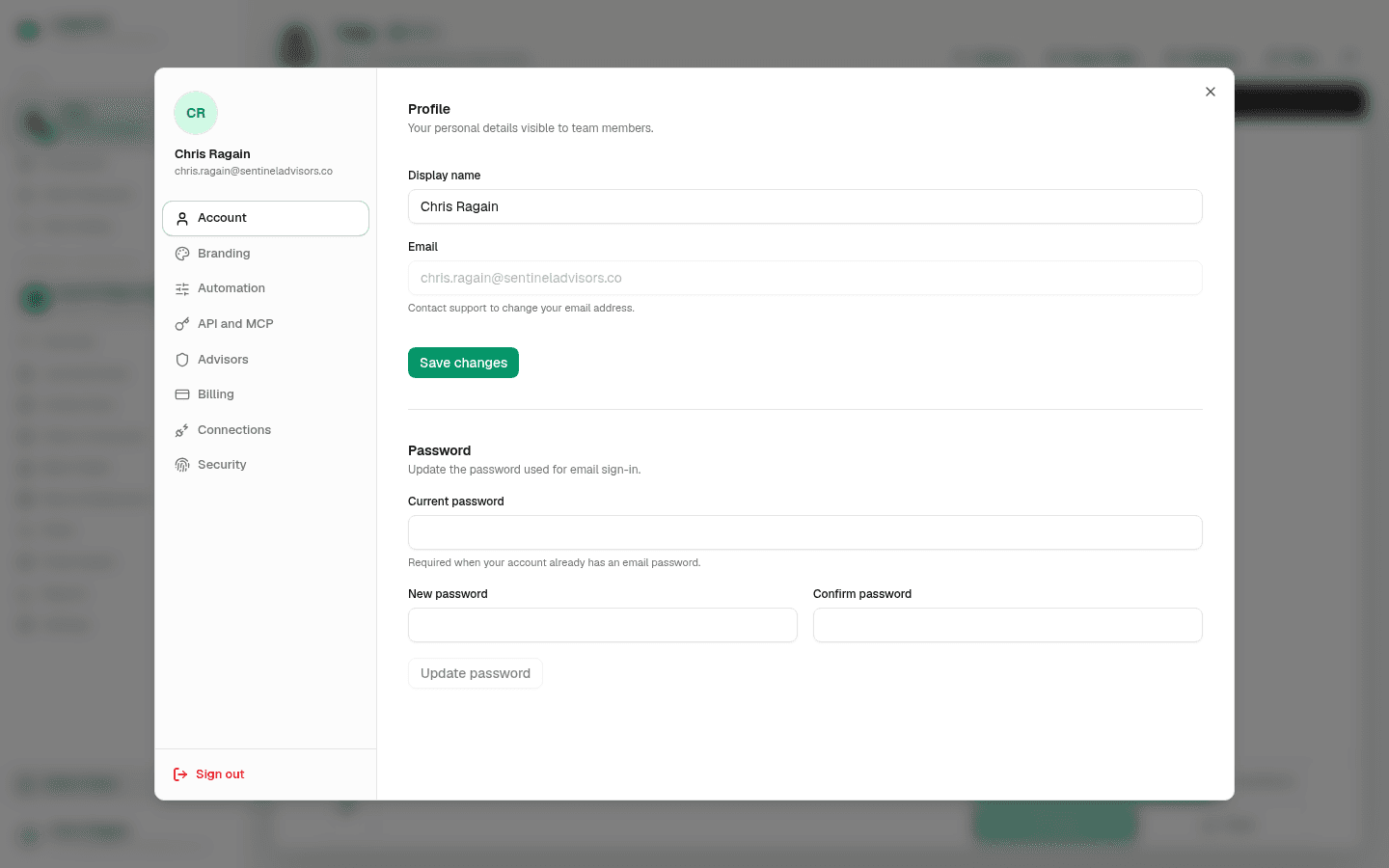
The Account tab holds your personal profile. Edit your Display name — the name teammates see — and select Save changes. Your email is shown but locked; the tab notes that you contact support to change your email address.
Below the profile, the Password section updates the password used for email sign-in. Enter your current password (required if your account already has one), then a new password and its confirmation, and select Update password.
Branding
The Branding tab sets your firm's report branding once for every company you manage. Upload the firm logo and choose the report colors, and those are applied to the report headings across all of the firm's companies. This edits the firm organization, not any single company, so you maintain one consistent look in one place.
Automation
The Automation tab controls firm-wide AI bookkeeping behavior. The core setting is the confidence threshold that governs when Tally's suggestions post automatically in bank feeds — one firm policy applied to every managed company. This tab also shows Tally's included monthly usage. Tally is fully managed by LedgerHQ, so there are no provider connections or model choices to configure.
For how the threshold interacts with coding and posting, see Bank rules and auto-posting. For Tally's duties, authority, and included usage, see Hiring and configuring Tally.
API And MCP
The API and MCP tab is where you create personal API keys and connect agents over MCP. Because it is a topic on its own, it has a dedicated guide: API keys and MCP access. Use that article to create a key, connect Codex or Claude, and understand what the authorize screen grants.
Advisors
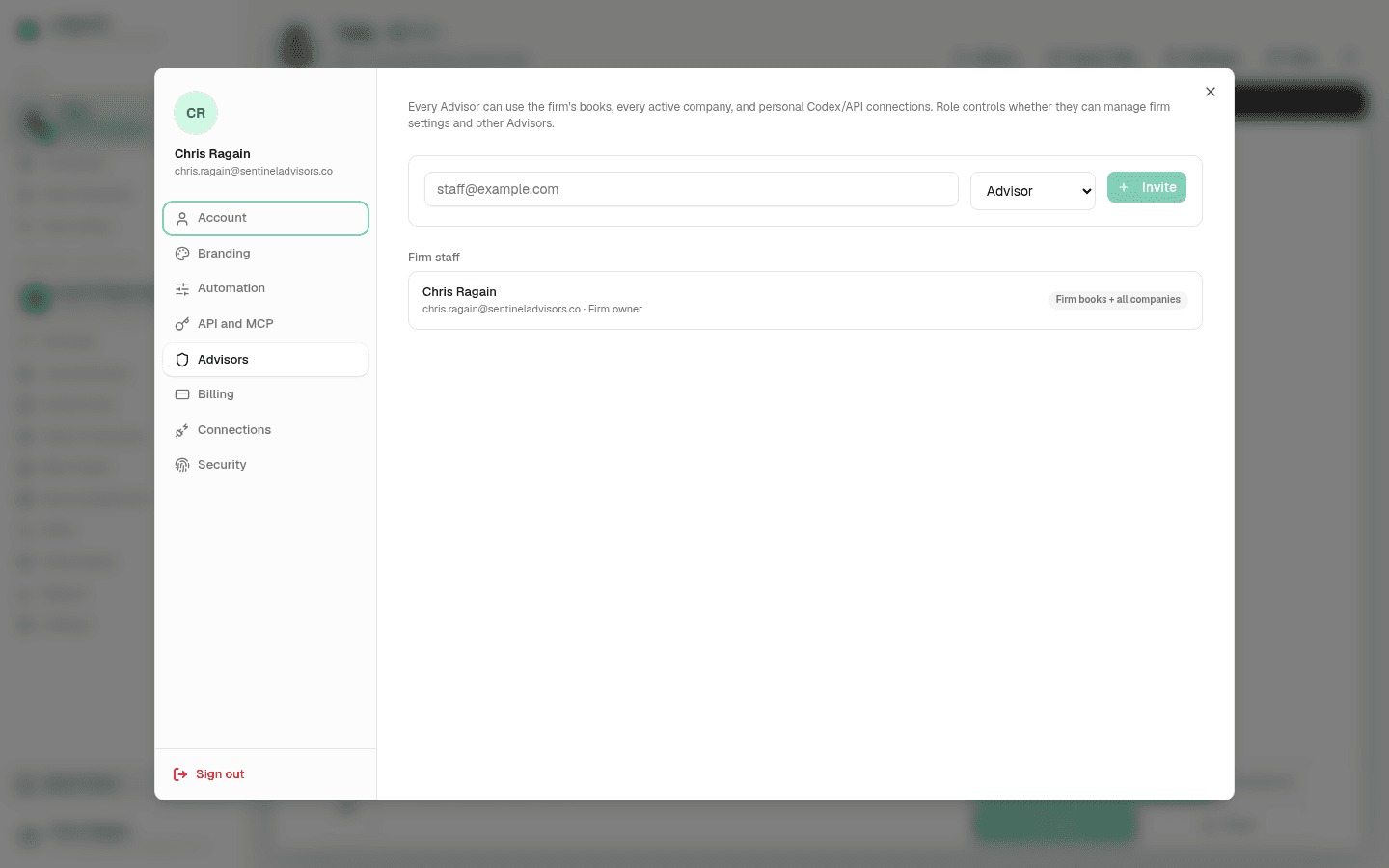
The Advisors tab manages the people on your firm. Invite an advisor by email and set their role, and review or change existing members. Roles are Firm owner, Firm admin, and Advisor. Removing an advisor also revokes their personal connections.
Billing
The Billing tab shows your firm's package, active company count, bank-account usage, and subscription status. It is covered in detail in Billing and trials — use that article for pricing, trials, and managing the subscription.
Connections
The Connections tab lists optional services connected to your account. It is a placeholder for future integrations; today it shows that no optional connections are available yet. Agent and MCP connections are managed on the API and MCP tab, not here.
Security
The Security tab manages active sessions and sign-in activity. Sign out everywhere (the Revoke all action) invalidates every active session and signs you out of all devices — after confirming, you will need to sign in again. Below it, Recent sign-ins lists your sessions, flagging any from a new IP address so unfamiliar activity stands out.
If you suspect your account has been accessed by someone else, use Sign out everywhere on the Security tab and then change your password on the Account tab. Signing out everywhere ends every active session, including the suspicious one.
Finding The Right Tab
If you are not sure where a setting lives: personal identity and password are on
Account; anything firm-wide about reports appearance is on Branding;
Tally and auto-posting behavior is on Automation; keys and agents are on
API and MCP; people and roles are on Advisors; the subscription is on
Billing; and sessions and sign-in safety are on Security. When another
part of the app links you here, it uses ?account=<tab> to open the exact tab
you need.